Managing Your Developer Account
From your Console invitation to a live app in the marketplace
This guide covers everything you do in the Vim Console — creating an app, filling in its manifest, getting credentials, submitting for review, and going live. For SDK code, see Getting Started.
Accepting your invitation
You'll receive an email invitation to Vim Connect. It links to a short (about 5 minute) onboarding wizard — here's what each step asks for.
Check your inbox
Look for an email titled "Vim invited you to join Vim Connect". It states what you're being set up as and links to the onboarding wizard.
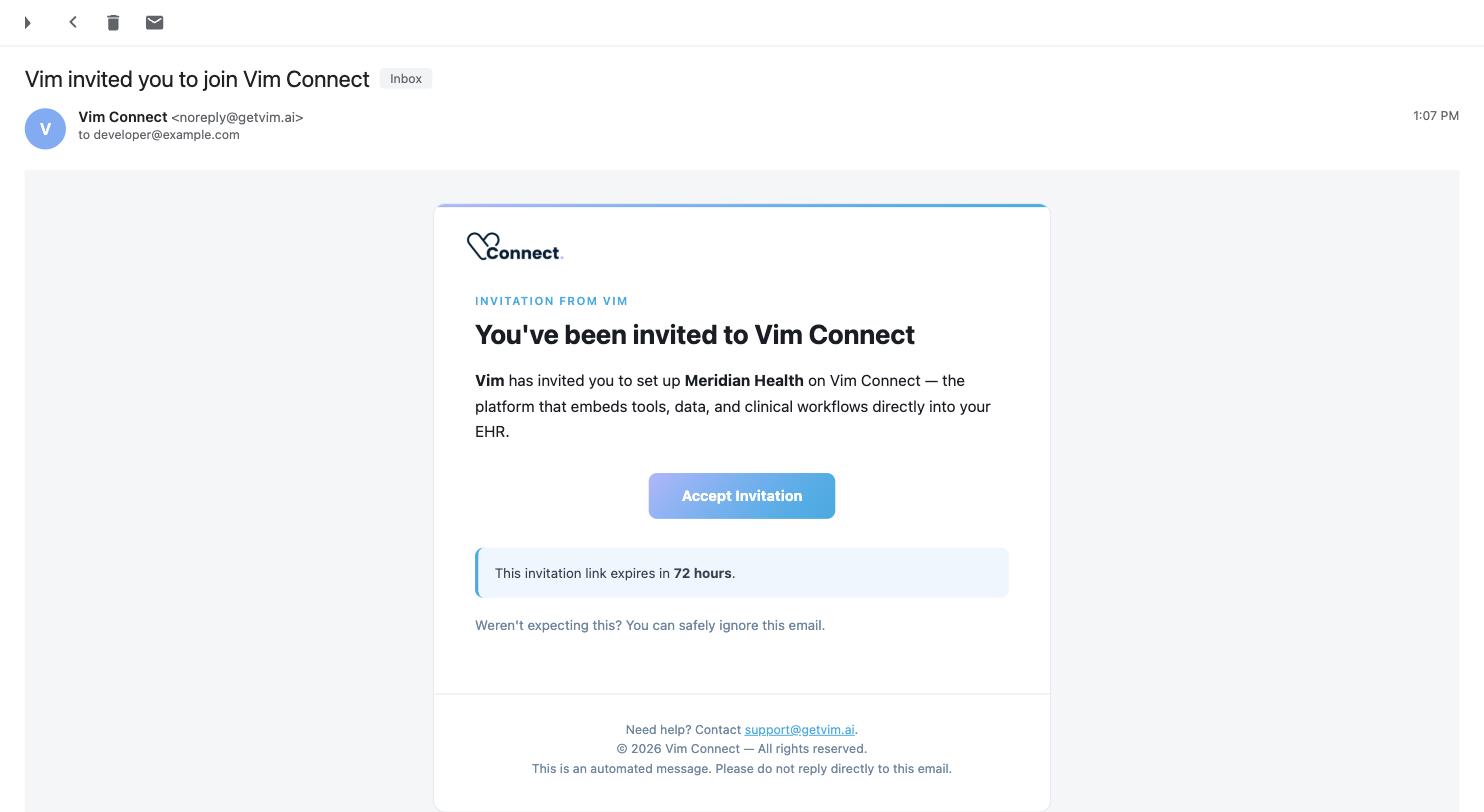
The link expires in 72 hours
If it's expired, ask whoever invited you to resend it from Console — Network → Invitations → Resend invitation.
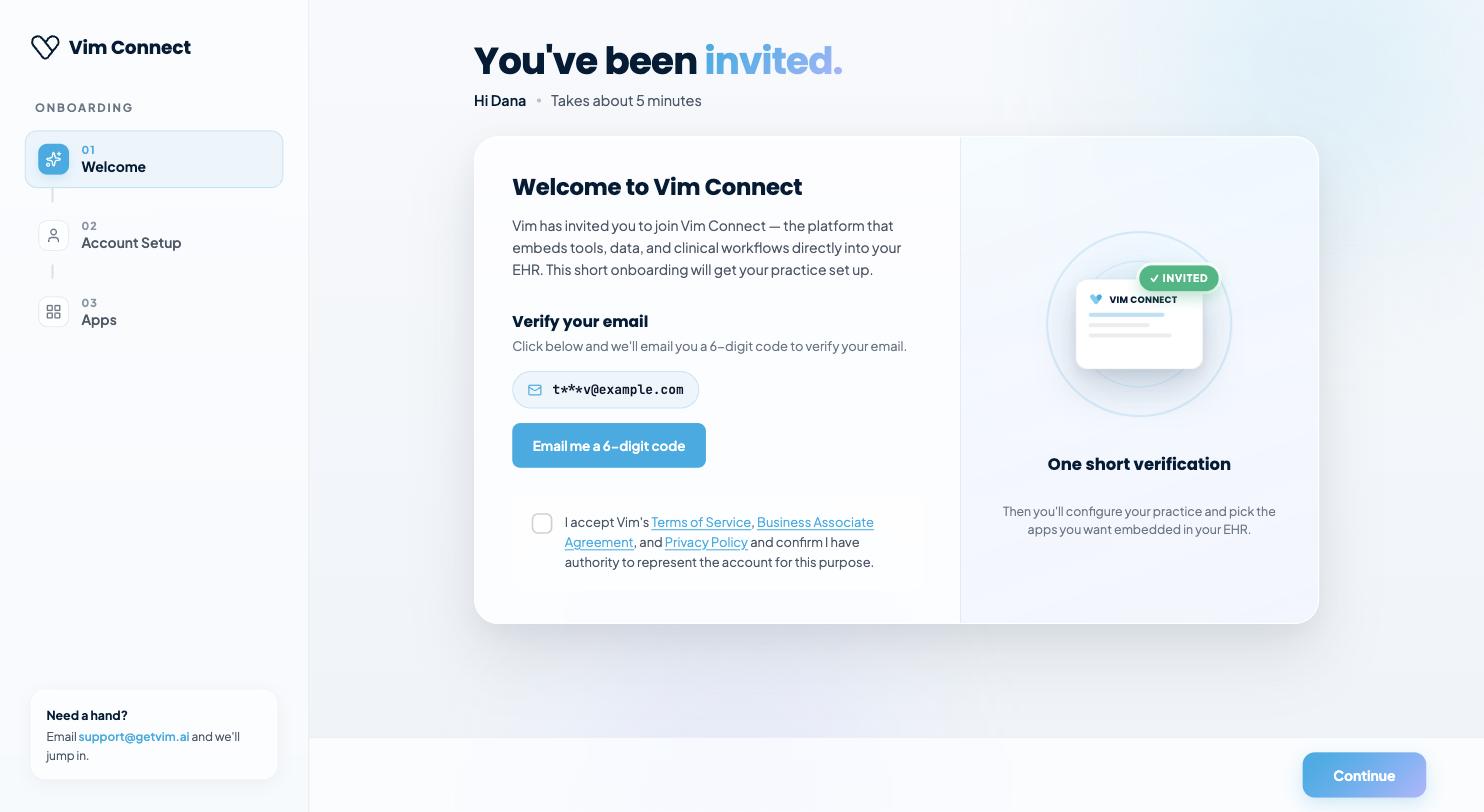
Welcome
Verify your email with a 6-digit code, then accept the Terms of Service, Business Associate Agreement and Privacy Policy.
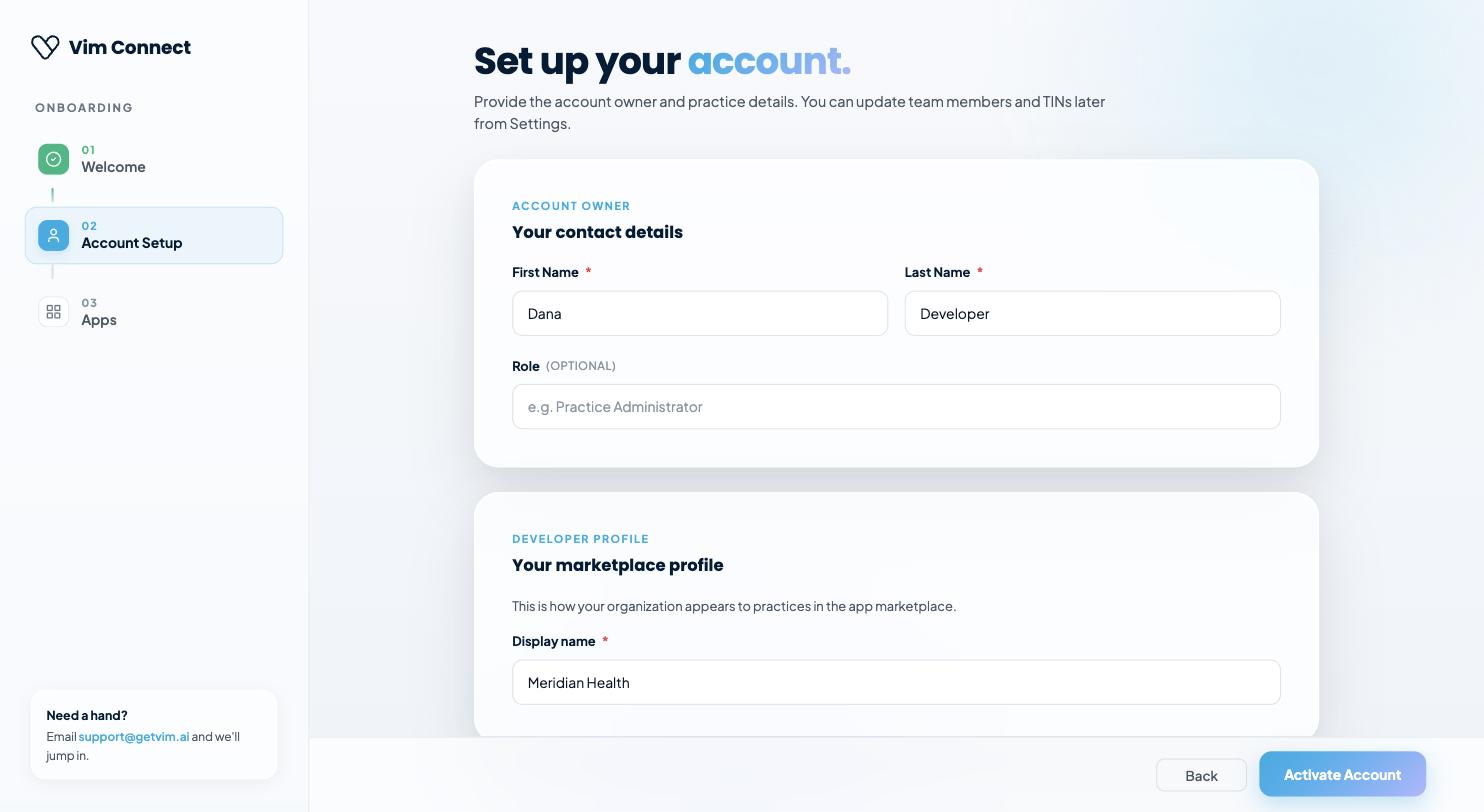
Account Setup
Provide your contact details (name, optional role) and your developer marketplace profile — the display name practices see when they discover your app in the marketplace.
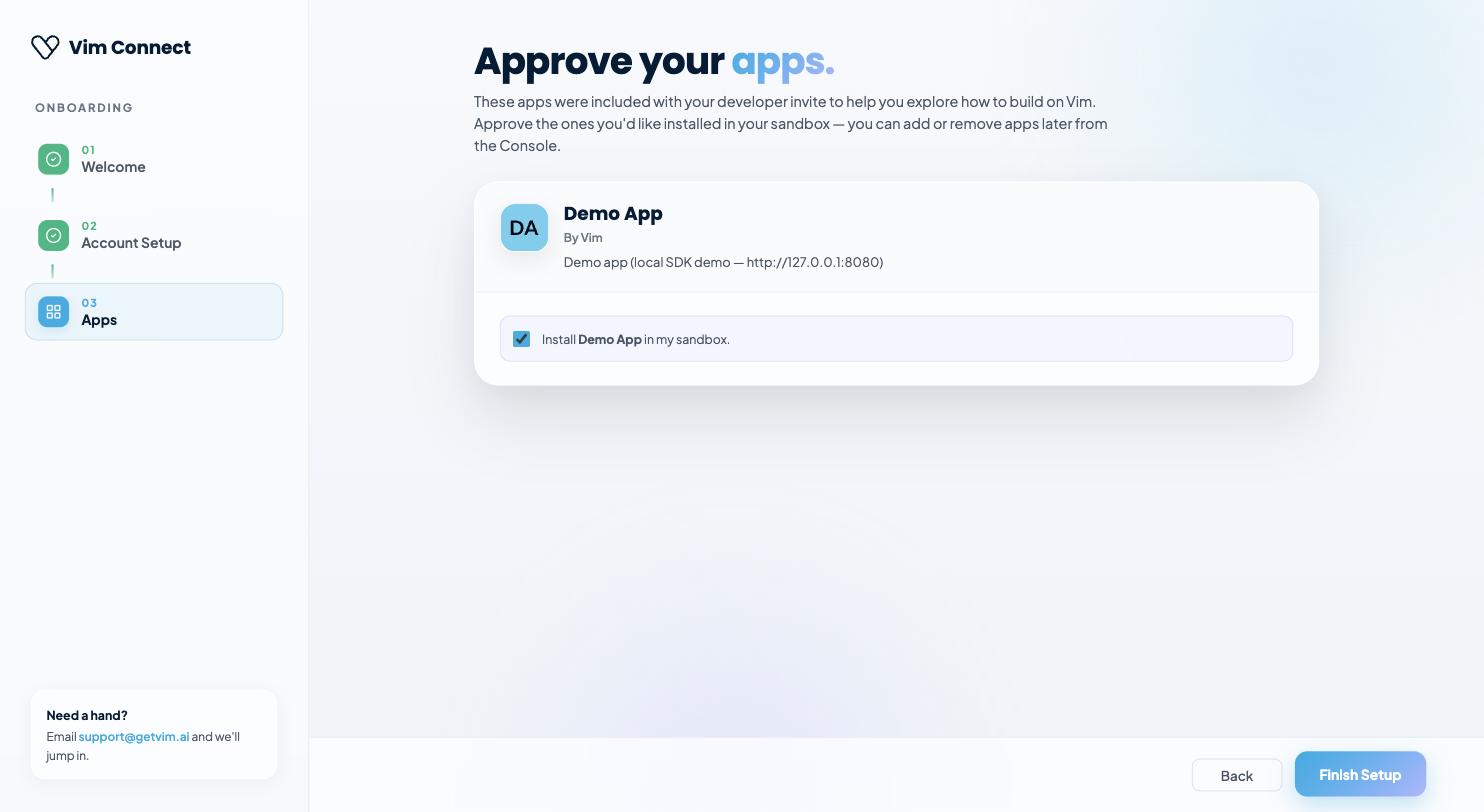
Apps
If your invitation included any pre-installed apps — most commonly the Demo App, so you have a working example to explore immediately — approve the ones you want installed in your sandbox. You can add or remove apps later from the Console.
Finishing setup activates your account, which carries a developer facet and reveals the Build section in the left navigation:
| Item | Purpose |
|---|---|
| My Apps | Every app you own, with its status |
| Sandbox EHR | Your isolated EHR instance for testing |
| Resources | SDK reference, this guide, the EHR Support Matrix, demo app |
Creating an app
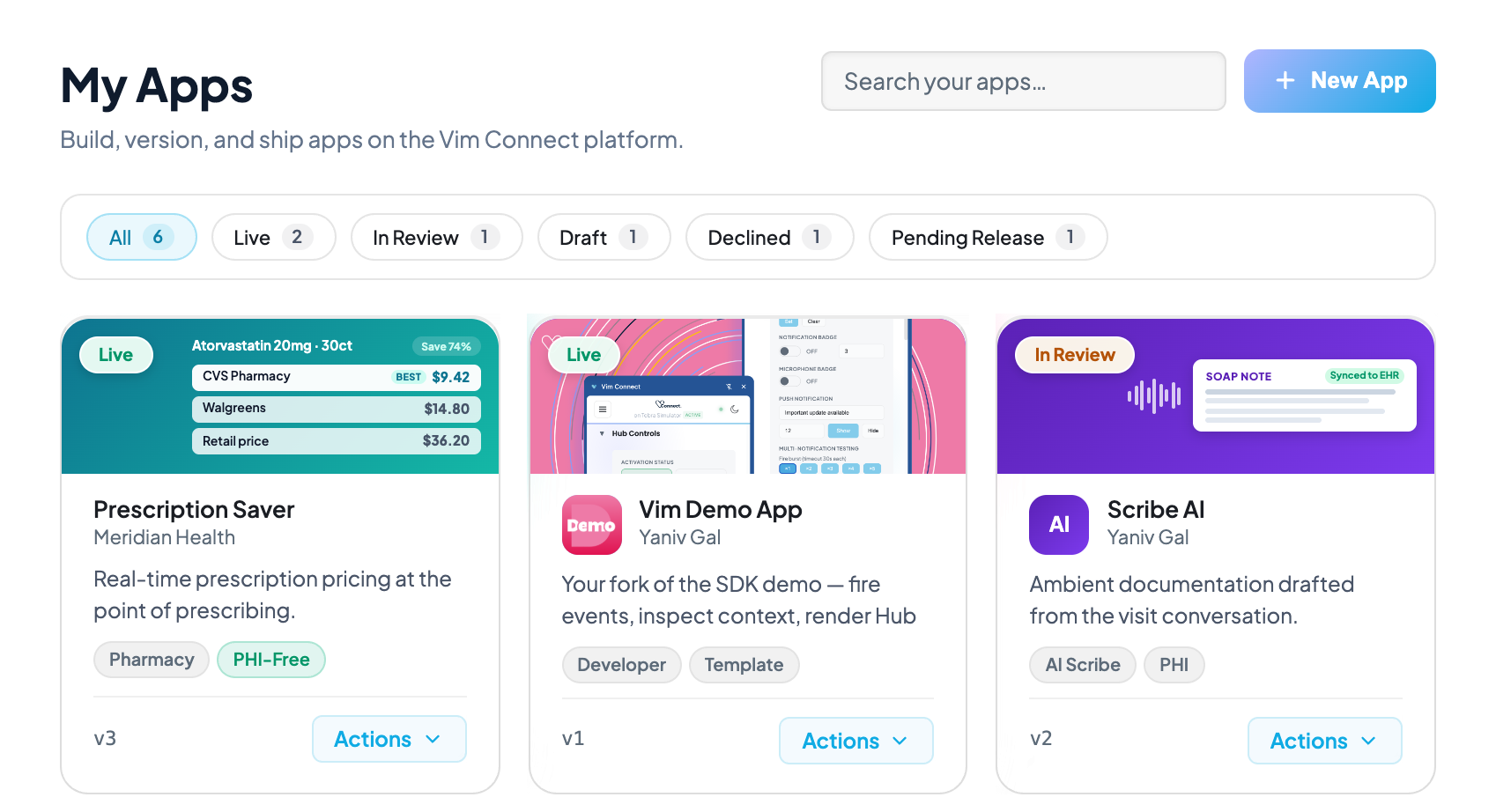
From Build → My Apps, choose + New App. Vim creates the app with a placeholder name and an empty v1 draft, then opens the manifest editor.
An app is a container; the thing you configure, submit and publish is a version. Versions
are numbered (v1, v2, …) and each carries its own manifest and submission answers.
You have two ways to start building:
- From scratch, if you're building a real product — implement the SDK integration yourself against Quick Start and your own app architecture.
- Fork the Demo App, if you just want a working
proof of concept fast. It already implements the OAuth launch flow, SDK initialization, and the
core Hub/EHR capabilities — clone it, set its
CLIENT_IDandCLIENT_SECRETenvironment variables to the credentials from the environment you create below, and you have a running app in the Sandbox EHR in minutes. Customize it from there instead of wiring the SDK up from zero.
Inviting your team
Apps belong to the account, not to you personally — anyone you invite with the right role can work on the same apps, so you don't need to share credentials.
From Users, choose Invite users:
- Enter one or more email addresses — one per line, or comma-separated.
- Pick the role that applies to every invitation in this batch:
| Role | Can do |
|---|---|
| Member | Use apps installed for them; no Console administration |
| Admin | Manage apps, users and account settings |
| Owner | Everything an Admin can, plus billing and ownership transfer |
- Optionally pre-select which apps the invited users get on day one. Apps marked for auto-add are already selected.
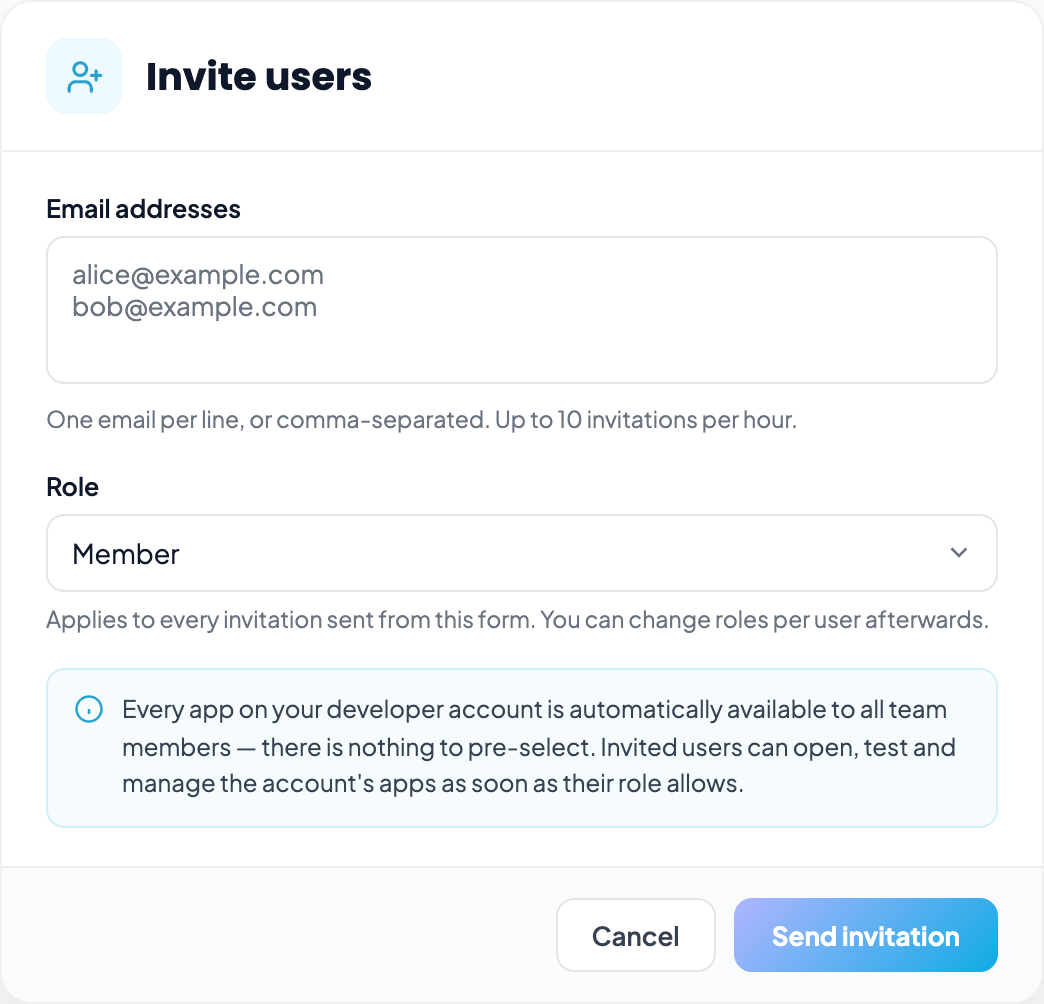
Roles can be changed per user afterwards from the Users table — you don't need to re-invite someone to promote them.
For day-to-day development you only need one developer account. Invite teammates when you want shared ownership of the app, or when QA needs to exercise it in the Sandbox EHR.
Filling in the manifest
The manifest editor has four tabs. Changes save automatically as you type.
Metadata
Your app's identity and the technical details Vim Connect needs to load it.
| Field | Notes |
|---|---|
| App name | Shown to providers in the hub and to admins in the Console |
| Tooltip | Hover text on your hub icon (max 80 characters) |
| Icon | Square SVG, transparent background, 100×100. Single-color outline, no fills or brand colors — Vim recolors it per hub state, so baked-in color renders wrong |
| Allowed iframe URLs | Comma-separated origins you own that may be embedded, e.g. http://localhost:3000, https://yourapp.com. Must match the redirect_uri your launch endpoint returns |
| Launch Endpoint | Your backend endpoint Vim calls to begin the auth flow |
| Token Endpoint | Your backend endpoint that exchanges the authorization code for an access token |
| Worker Launch Endpoint | Optional. Only if you ship a Worker App |
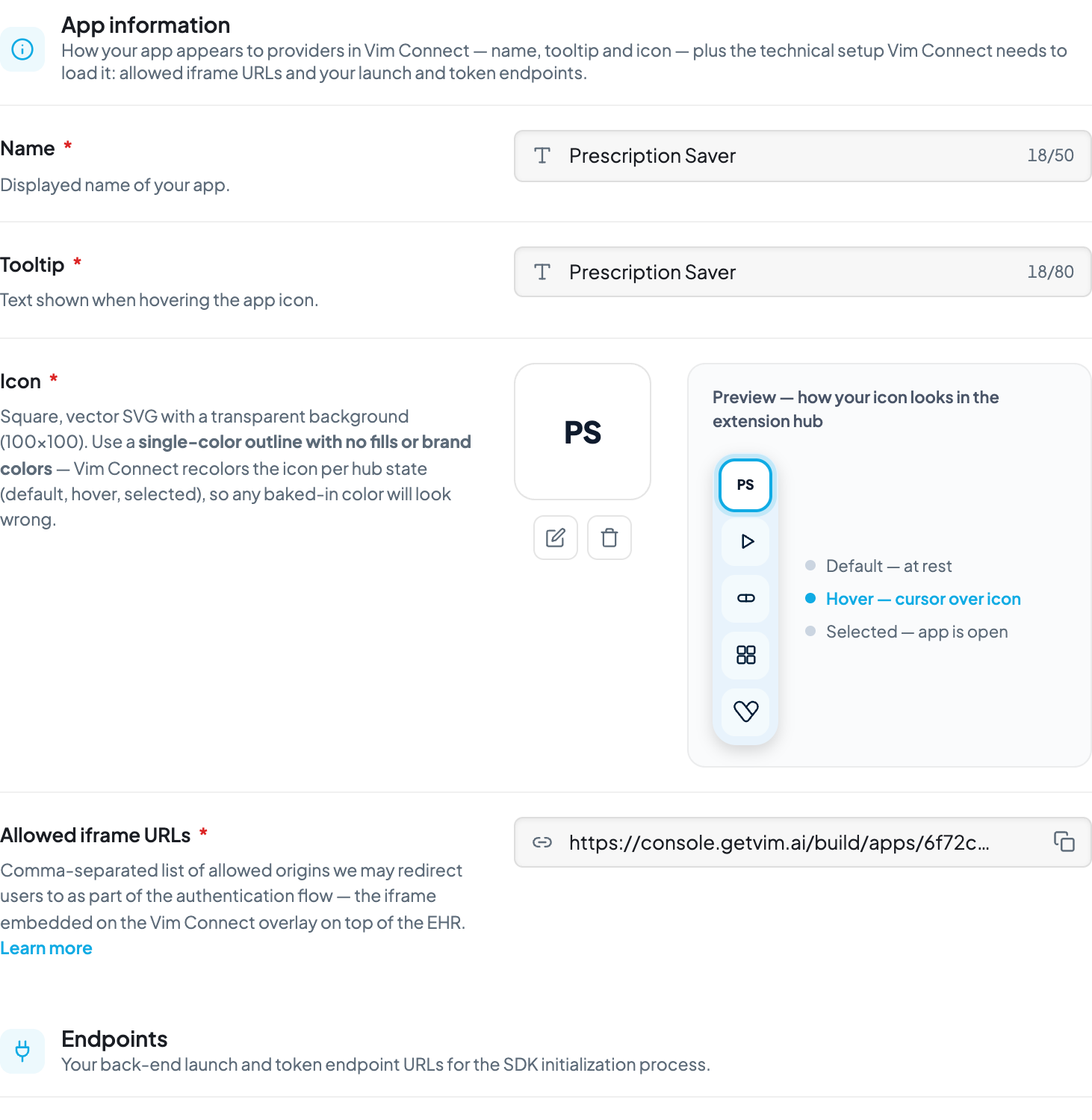
See Authentication for how the launch and token endpoints fit together.
App UX
Toggle the hub capabilities your app uses — notification badge, push notifications, patient details in the panel. Each toggle previews how it appears in the hub. Enable only what you use; review asks you to justify each one. Reference: Vim Hub.
EHR
Declare the EHR data your app reads and writes, and the API operations it calls.
- Fields are selected per entity and sub-section — request the narrowest set you need.
- Allowed PII is a single toggle. While off, identifying fields are locked and unselectable; turning it on unlocks them and each becomes something you justify at review.
- API operations are separate from field access. They let your app call the EHR outside the context of the open record — for example fetching a full medication list when that chart isn't on screen.
Check coverage first
Consult the EHR Support Matrix before finalizing scopes. A field your target EHRs don't support will pass review and still fail in production.
Entity Store
Optional persistence for entities your app maintains across sessions.
Getting your client ID and secret
Credentials belong to an environment, not to the app — so you can hold separate credentials for local development, staging and production.
From Manage Versions → Environments, choose Add Environment:
| Field | Notes |
|---|---|
| Name | e.g. Local, Staging, Production |
| URL / Launch / Token overrides | Optional per-environment overrides of the manifest values — point Local at http://localhost:3000 without touching your production manifest |
On save, Vim shows your Client ID and Client Secret.
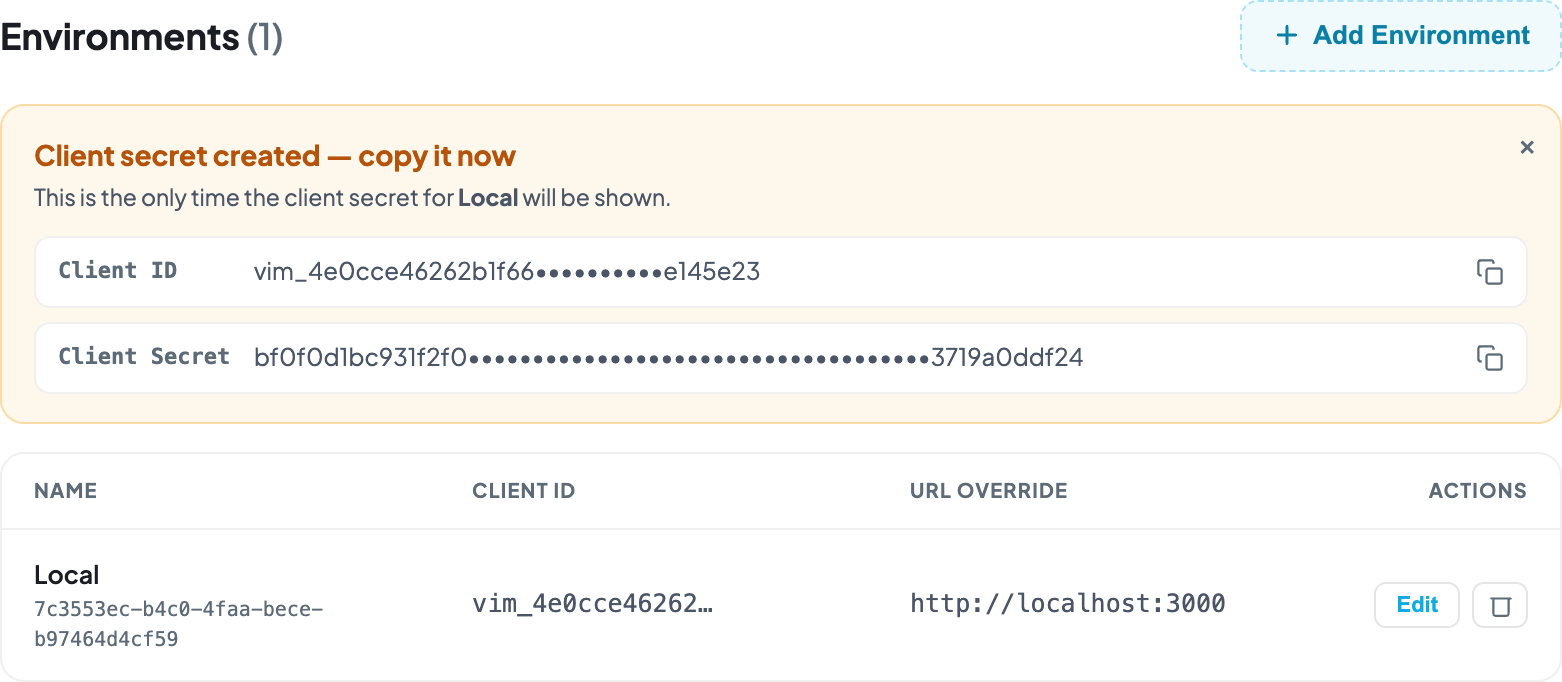
The secret is shown once
The client secret is displayed a single time, at creation, and stored hashed. Copy it into your environment configuration immediately. If you lose it, create a new environment — it cannot be retrieved.
Supply both to your backend as CLIENT_ID and CLIENT_SECRET for the token exchange described
in Authentication.
Testing against the Sandbox EHR
Your account includes an isolated Sandbox EHR — a working EHR with synthetic patients and no real PHI. It is the only place to exercise your app end to end before review.
Setting it up
- Open Build → Sandbox EHR in the Console. It opens in a new tab.
- Install the Vim Connect browser extension — this is what injects the overlay and hub into the EHR page. Without it, your app has nothing to load into.
- Sign in to the extension with the same Console account.
- Confirm the extension reports a detected EHR system. If it says no EHR detected, you are not on a page the adapter recognizes.
What to test
- Every workflow event you subscribe to — open a chart, open an encounter, and confirm your handlers fire with the context you expect.
- Missing fields. EHR coverage varies, so a field present in the sandbox may be absent in a production EHR. Verify your app degrades rather than throws — see Error Handling and the EHR Support Matrix.
- Hub presence — badge counts, activation state and push notifications, per Vim Hub.
- Writeback, if you use it: confirm the consent prompt appears and that a declined request is handled.
The sandbox is not a coverage guarantee
The Sandbox EHR supports a broad set of capabilities, so something working there does not mean every production EHR supports it. Always confirm against the EHR Support Matrix before you submit.
Managing versions
Manage Versions lists every version with its status and the actions available:
| Status | What it means | Actions |
|---|---|---|
| Draft | Editable, never submitted | View/Edit · Duplicate · Delete |
| In Review | With the Vim review team; locked | View · Cancel review · Duplicate |
| Pending release | Approved, not yet published | View · Mark as live · Duplicate |
| Live | Published in the marketplace | View · Unpublish · Duplicate |
| Declined | Review concluded with changes requested | View feedback · Duplicate |
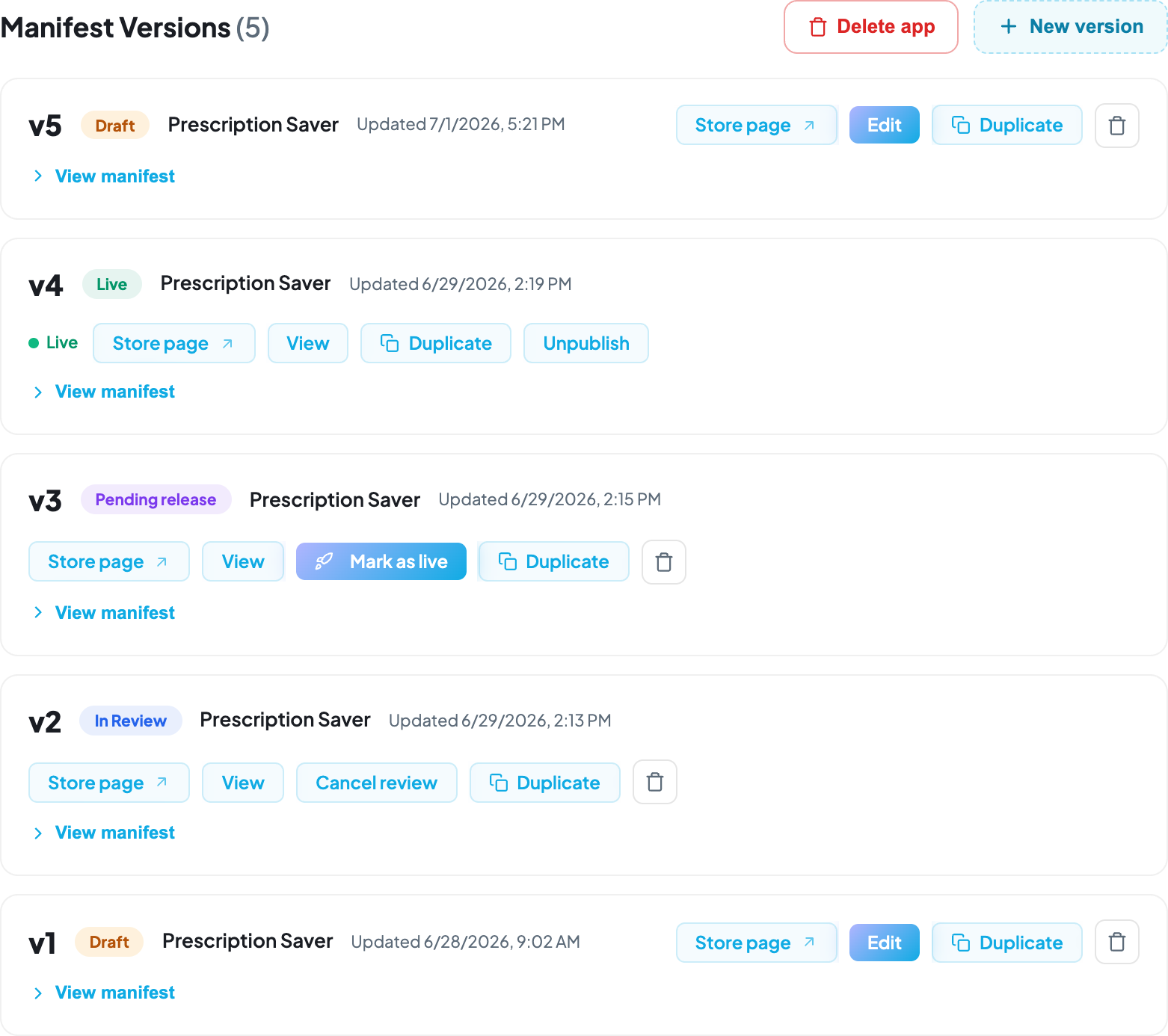
Only Draft versions are editable. Any other status is read-only: you can browse every tab, but fields are disabled. To iterate on a submitted or live version, duplicate it — the copy is a fresh draft carrying all your manifest values and submission answers.
Submitting for review
Open the submission form from the manifest. It has four sections, and every field is required unless marked optional or gated behind a "No" answer. Hovering the disabled Review & Submit button lists exactly what's still missing — but it's faster to gather everything up front. This section is a prep guide to what's asked in each and why.
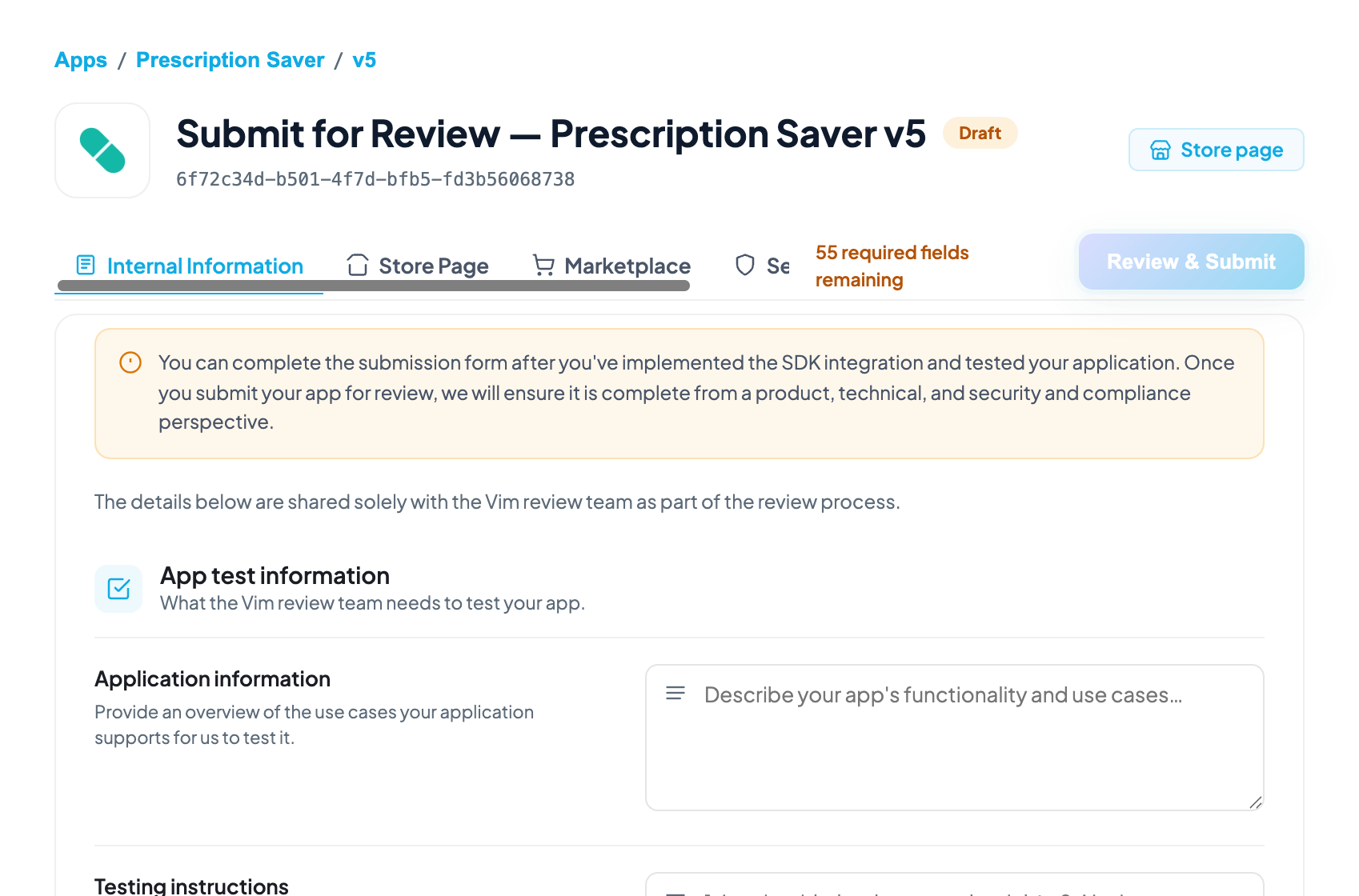
Internal Information
Shared only with the Vim review team — never shown on your public listing.
| Group | Asks for | Why |
|---|---|---|
| App Test Information | What your app does, step-by-step testing instructions, an optional demo video | Reviewers can't guess your workflow — clear instructions using synthetic data only (no real PHI) are what let them actually exercise the app instead of guessing |
| Demo User Details (optional) | A username/password for your app | Only needed if your app hasn't implemented SSO or auto-provisioning — gives the reviewer a way in |
| Patient Details (optional) | A non-PHI test patient, or your activation criteria (e.g. "any patient in an encounter") | Lets the reviewer land on a patient your app actually activates for, in the Sandbox EHR |
| EHR Permission Usage | A justification for each EHR resource you read or write, and any chart-retrieval requests | Reviewers check this against the scopes you declared in the manifest's EHR tab — an access request with no stated use case is the most common reason review stalls |
| App UX | A justification for each Vim Hub feature you enabled (badges, notifications, etc.) | Same idea as EHR scopes — enable and justify only what you use |
| Technical Contacts | Email(s) for your engineering point of contact | Where review questions go if something's unclear |
| Internal Assessment | Security, compliance, healthcare-regulatory, and AI/ML questions — third-party data access, breach history, HIPAA compliance, FDA/medical-device status, litigation history, AI model behavior | Vim's internal risk review. Private — none of this appears on your listing |
Justify scopes, don't just declare them
The single most avoidable review delay is a permission with no stated use case. If your manifest requests a field or Hub feature, the Internal Information section is where you explain why — answer it as you fill in the manifest, not as an afterthought at submission time.
Store Page
Your public marketplace listing.
| Group | Asks for |
|---|---|
| Description | Listing icon (colored backgrounds allowed here, unlike the Hub icon), brand color, a short one-line summary, and a full description |
| Media | Screenshots or video shown on your listing |
| Categories | Where your app is discoverable in the marketplace |
| Buttons (optional) | Primary/secondary call-to-action links (e.g. "Get Started", "Learn More") |
| Legal | Privacy Policy URL, Terms of Service URL, and your BAA (or a stated reason for not sharing it publicly) |
| Resources | Developer name, address, phone, website, support email, and a network-request email for data-access requests |
Marketplace
Visibility, Pricing, and Distribution Level — who can find and install your app, and under what commercial terms.
Security
Shown publicly in the Applications section for transparency to any account considering your app — unlike Internal Information, this section is visible to end users. It covers HIPAA compliance, PHI handling and offshoring, data protection (encryption, retention, de-identification), security practices (secure SDLC, penetration testing, access controls, audit logging), and AI/PHI processing. Submitting confirms you agree to the Application Developer Terms of Service and Security Best Practices linked in the form.
You own this content
Vim reviews every submission for functionality and baseline security, but does not endorse or certify your app. The security and compliance answers are yours — keep them accurate, since they're what an installing organization sees.
The form also shows read-only summaries of your EHR data access and App UX selections, pulled from the manifest, so you can see precisely what you're being asked to justify.
Submitting locks the version for the duration of the review — typically up to 10 business days, with an email update within 7.
Going live
When review passes, the version moves to Pending release and you decide when to ship. Open Manage Versions and find the version carrying that status — it is the only one that offers Mark as live:

Selecting it opens a confirmation that states the effect before anything ships:
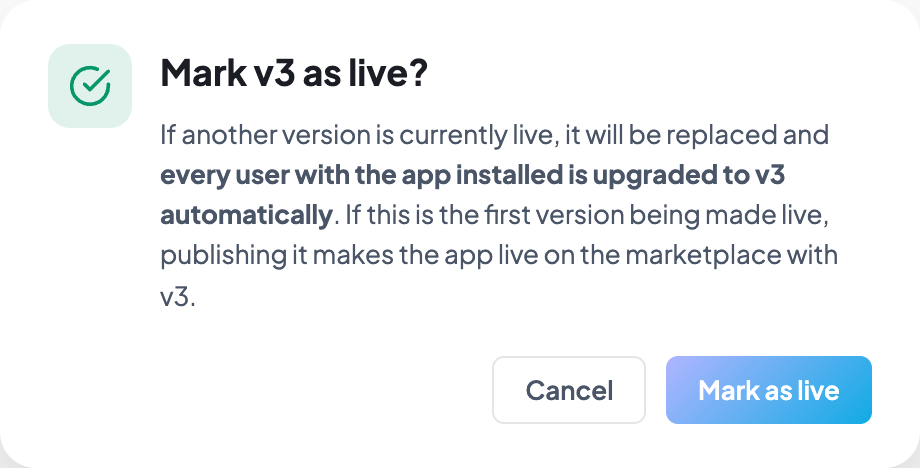
- If another version is already live, it is replaced and every user with your app installed is upgraded automatically.
- If this is your first live version, publishing it makes the app live in the marketplace.
If review concludes with changes requested, the email links to the reviewer's notes in Console. Answer them on the submission, or duplicate the version into a new draft if the manifest itself needs to change, then resubmit.