Vim Hub
Control your app's presence in the Vim Hub overlay
The Vim Hub is the overlay UI in the EHR showing app icons. The sdk.hub namespace controls your app's presence.
Six of these must be declared in your manifest
Several Hub surfaces are App UX capabilities: your app has to ask for them on the App UX tab of its manifest in the Console, and the request is reviewed with the version. A capability you did not declare is not one your app was approved to use.
| Console checkbox | What it lets you do |
|---|---|
| Badge Notification Label | notificationBadge |
| Push Notification | pushNotification.show() |
| Show Patient Header | The patient banner above your app |
| App Always Available | Declared for review and shown on your listing. It has no effect in the Hub today — the extension is not sent the flag |
| Allow Microphone | Record audio with getUserMedia({ audio: true }) |
| Allow Video Capture | Capture video or stills with getUserMedia({ video: true }) |
Everything else on this page — activation status, tooltip, the microphone badge, closeApp(),
appState — needs no declaration.
Activation Status
Whether your app is worth opening for this patient, and how your icon looks while the provider decides.
An app that never calls this is not unreachable: an icon with no reported status renders as
ENABLED and opens on click. What setActivationStatus gives you is the ability to say
otherwise — to grey yourself out when you have nothing to offer, and to show you are still
thinking.
sdk.hub.setActivationStatus('ENABLED');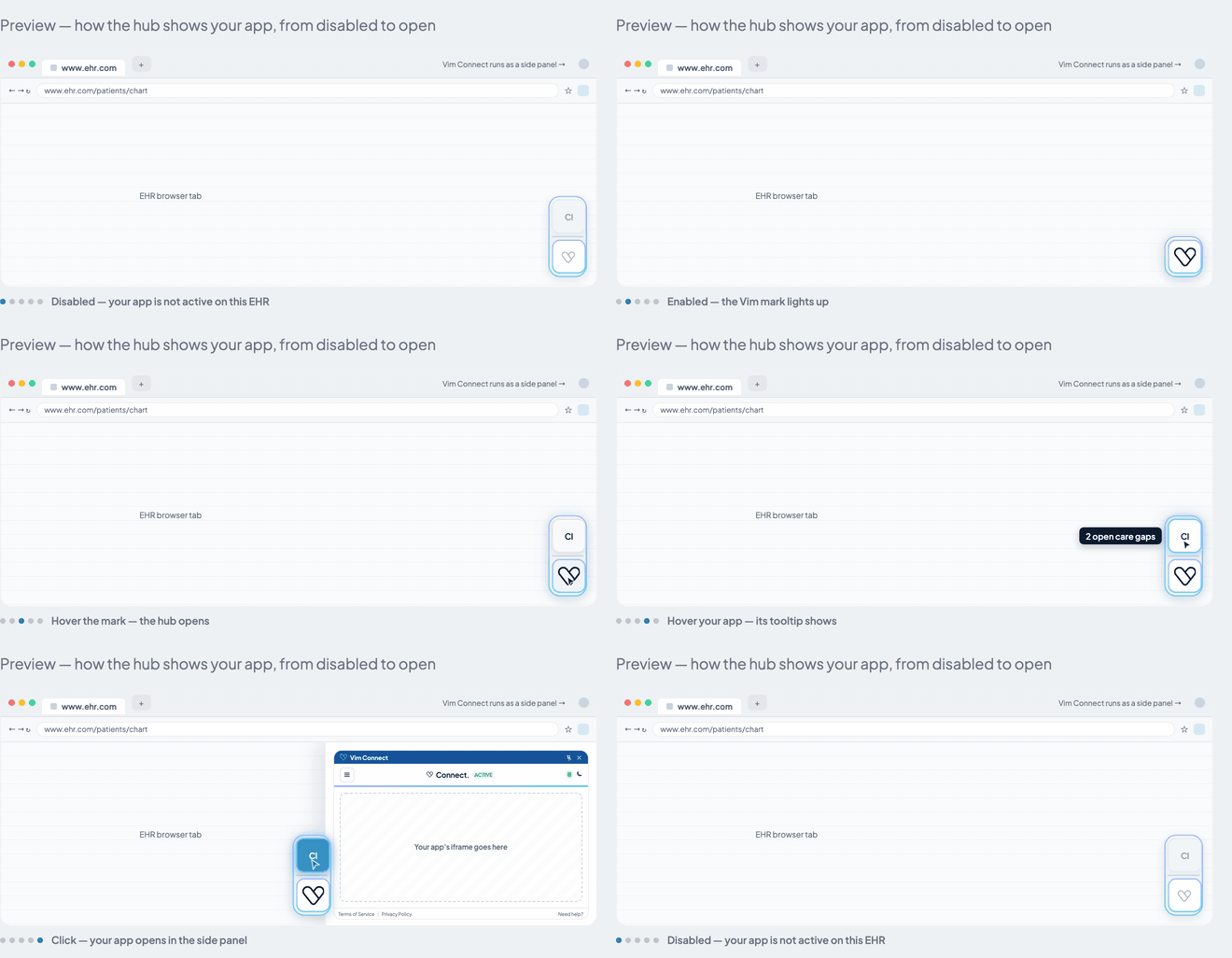
The Console shows this same preview live on your manifest's Metadata tab, against your own icon and tooltip.
| Status | What the provider sees | Icon opens the app |
|---|---|---|
DISABLED | Icon at 40% opacity and fully greyscale | No — clicks on the Hub icon are ignored |
LOADING | Icon pulsing between full and 40% opacity, about once a second | No |
ENABLED | Icon in full colour | Yes |
Use LOADING while you are deciding — fetching from your backend, evaluating whether this patient
is relevant — and land on ENABLED or DISABLED once you know. DISABLED is the honest state for
"nothing useful for this patient"; it is not an error state.
`ENABLED` is a claim that you have something for this patient
Treat it as a statement about relevance, not a switch you flip once at startup. Setting ENABLED
on load lights up the Hub and invites the provider into an app that may have nothing for them —
and it makes your status useless as a signal, because it says the same thing for every patient.
Decide first, then set it: stay LOADING while you evaluate, then ENABLED or DISABLED once
you know.
Your status also changes the Hub itself. The Hub button takes the highest state of all the
installed apps: active if any app is ENABLED, loading if any is LOADING and none is enabled,
and otherwise standby — a small, grey, desaturated Vim logo. If yours is the only app the provider
has, leaving it DISABLED makes the whole Hub look dormant.
Tooltip
The text shown when the provider hovers your icon. It defaults to your app's name from the manifest; set it when you can say something more useful about this patient or this moment, and update it whenever that changes.
sdk.hub.setTooltipText('2 open care gaps');
sdk.hub.setTooltipText(''); // back to your app's name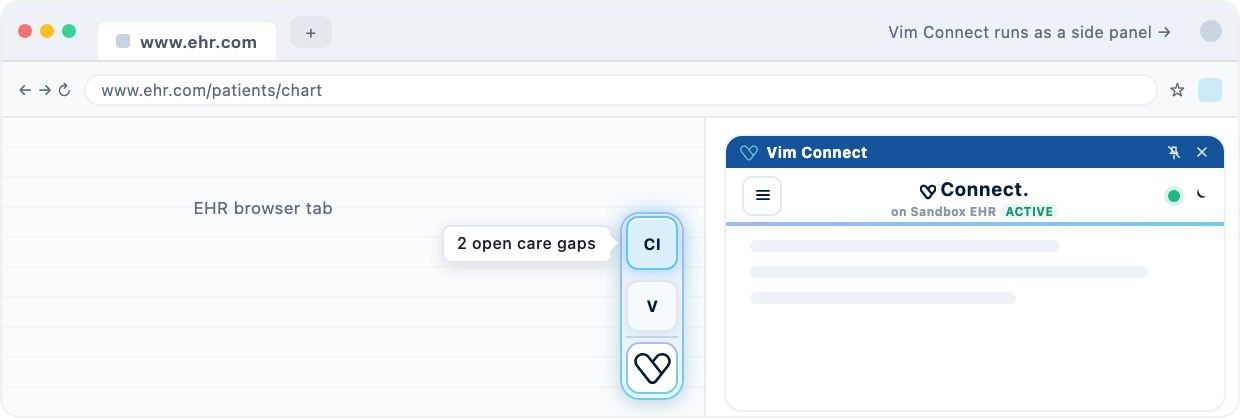
Up to 60 characters — anything longer is cut before it reaches the Hub. The tooltip is a single line beside the Hub, so when the page next to it is too narrow for the whole text (the side panel dragged wide, a small window) it ends in an ellipsis instead. Put what matters first.
The provider only sees it by hovering your icon, so it cannot carry anything they need to see unprompted. For that, use a notification.
Notification Badge
A count on the corner of your icon, for work waiting inside your app.
sdk.hub.notificationBadge.set(3);
sdk.hub.notificationBadge.hide();
The badge is per app and persists until you change or hide it — including while your app is closed, which is the point of it.
Required capability
Tick Badge Notification Label on the App UX tab of your manifest in the Console to use this call.
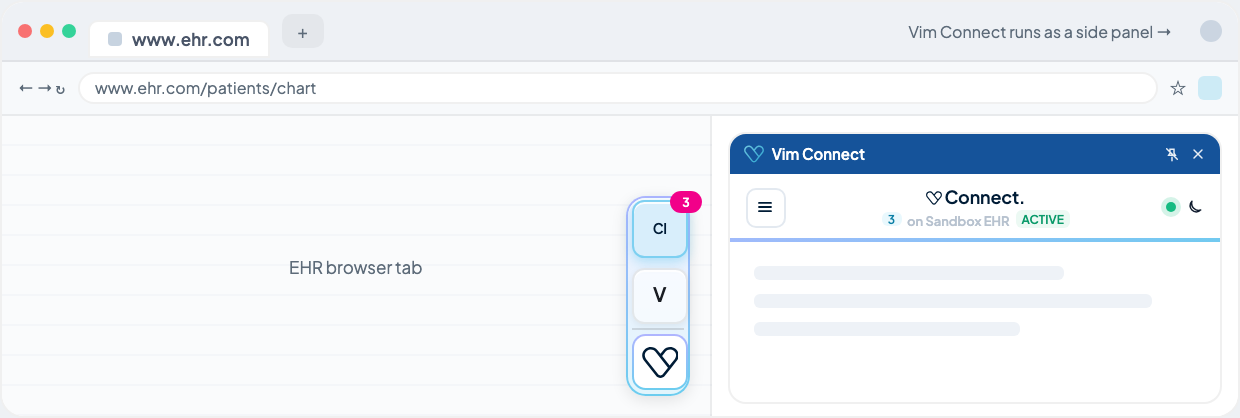
set(0) does not show an empty badge
A count of zero renders nothing at all, so set(0) and hide() look identical to the provider.
Prefer hide() when the work is done — it says what you mean, and it does not depend on this
behaviour staying as it is.
Push Notifications
A card that appears over the EHR, next to the Hub, without the provider opening your app. It is the one way to reach someone who is working in the chart and has no reason to look at your icon — a care gap found, a lab result back, a prior authorisation approved.
Use it when you have something worth interrupting for. A notification lands on top of clinical work, and a provider who learns your app interrupts for nothing stops reading them. If the information can wait until they open your app, the notification badge is the quieter way to say so.
Required capability
Tick Push Notification on the App UX tab of your manifest in the Console to use this call.
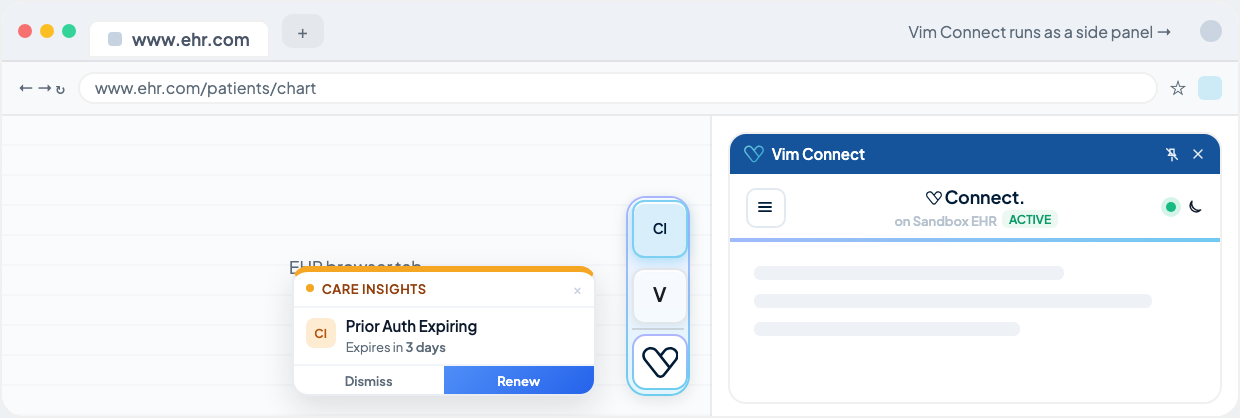
sdk.hub.pushNotification.show({
  text: 'New lab results available',
  title: 'Lab Results',
  notificationId: 'lab-results-123',
  timeoutInSec: 12,
  type: 'success',
  actionButtons: {
    rightButton: {
      text: 'View',
      buttonStyle: 'PRIMARY',
      openAppButton: true,
      callback: () => console.log('Viewing'),
    },
  },
});| Field | Type | Description |
|---|---|---|
text | string | Display text (supports <b> and \n) |
title | string? | Bold header line |
notificationId | string | Unique identifier |
timeoutInSec | number? | Auto-dismiss timeout in seconds. Default 12. Must be greater than 0 and at most 30 — show() throws VALIDATION_ERROR otherwise. A value under 1 is raised to 1 |
type | string? | 'info' (default) | 'warning' | 'success' | 'critical'. Colours the top progress bar and the dot in the header. 'critical' also disables auto-dismiss and waits for an explicit acknowledgment |
imageUrl | string? | Thumbnail shown in the 32×32 slot, replacing your app icon for that notification. Omit it and the slot shows the tinted icon from your manifest. Must start with https://, http:// or data:image/ — anything else is dropped silently and the icon is shown instead. |
actionButtons | object? | { leftButton?: ActionButton, rightButton?: ActionButton } |
onTap | function? | Called when the provider taps the card body. Tapping always opens your app, whether or not you pass this |
onTimeout | function? | Called when notification times out or is dismissed |
onAcknowledge | function? | Called when user acknowledges a critical notification |
Two more options, Worker Apps only
NotificationDetails also carries launchPayload and autoCloseOnAppOpen. The UI App's
show() does not forward them — it sends seven fields and silently drops the rest — so they take
effect only on the Worker App's handle.hub.pushNotification.show(). See
Worker Apps.
The four types
type is what the provider reads before they read your text — it colours the countdown bar, the
dot beside your app name, and the icon tile. Match it to what the notification is, and reserve
'critical' for the cases that should not be allowed to scroll past.
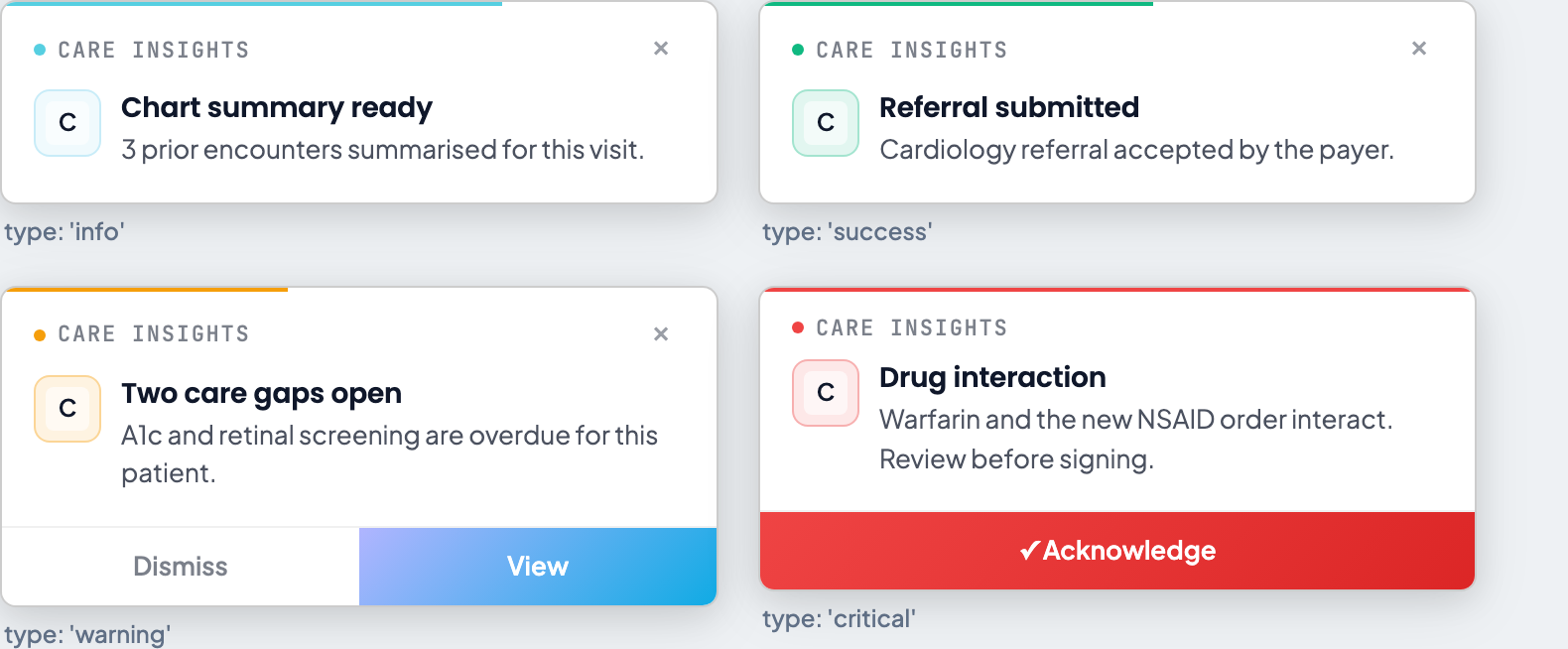
'critical' is structurally different, not just red: it has no dismiss ×, it does not auto-dismiss
whatever timeoutInSec says, and it carries a single Acknowledge button. It stays on the
provider's screen until they act on it — which is why it is the wrong choice for anything that can
wait.
One notification per ID, per day
notificationId is not just a handle for hide() — it is a deduplication key. Vim records
that the ID was shown, and a second show() with the same ID is dropped silently for the rest
of the UTC day. The record is scoped to the EHR system, your app and the ID together, and it
survives closing and reopening the tab, and restarting the browser.
This is deliberate: it is what stops an app that re-evaluates on every context change from showing the provider the same alert twenty times an hour. But it makes the choice of ID load-bearing:
// Wrong — 'care-gaps' fires once, ever, per provider per day.
notificationId: 'care-gaps'

// Right — distinct per patient, without naming one. `alertRef` is an opaque
// handle your backend minted for this alert; only your backend can resolve it.
notificationId: `care-gaps-${alert.alertRef}`
Do not put patient identifiers in the ID
The ID is stored on the provider's machine under a key nothing ever deletes, and it is written to extension logs that are uploaded. Anything you put in it is a durable record of which patients your app alerted on.
Use an opaque reference your own backend issues and can resolve — not the patient ID, and not a plain hash of it. EHR IDs and MRNs are short, so an unkeyed digest is reversible by trying every candidate: it is still an identifier, just a slower one. If you must derive the value locally, derive it under a secret only your backend holds.
The ID may be up to 256 characters and must not be blank.
The UI App gets no confirmation
sdk.hub.pushNotification.show() returns void. A notification dropped as a duplicate, or
rejected for a bad ID, looks exactly like one that was shown. The Worker App's
handle.hub.pushNotification.show() does return a Promise<TriggerResult> —
{ status: 'sent' }, { status: 'deduped' }, or { status: 'error', message } — so a worker can
tell the difference and a UI app cannot. Do not build a retry or a fallback on the UI side that
assumes you will find out.
Dismissing a notification
A notification goes away on its own when timeoutInSec elapses (default 12, max 30), or when the
provider taps it or closes it with the × button. A 'critical' notification is the exception: it
does not auto-dismiss and waits for an explicit acknowledgment.
To take one down early — the underlying alert resolved, or the provider dealt with it somewhere
else — call hide():
sdk.hub.pushNotification.hide();This clears the notification your app currently has on screen; an app can only show one at a time.
Microphone and Camera
Your app runs in a cross-origin iframe, and the browser denies it the microphone and camera unless the Hub delegates them. The Hub does that only for an app whose manifest declares Allow Microphone or Allow Video Capture, and only to your app's own origins: the origin of your launch endpoint and of each URL in Allowed iframe URLs. A page served from any other origin is denied, so list every origin the iframe can land on, including the one it returns to after login.
Without the declaration, getUserMedia throws NotAllowedError before any prompt appears.
Asking the provider
Call navigator.mediaDevices.getUserMedia as you would in any web page. There is no SDK call to
make first. The Hub asks the provider before your app gets the device:
- The Hub asks for your app. A Device Access dialog names your app and the device, with Allow, Allow once and Deny. Allow is remembered for your app; Allow once lasts until your app or the side panel closes. Another app's consent never covers yours.
- Chrome asks once, for every app. The first time any app asks, Chrome shows its own prompt in a small window. The provider answers it once, and every app is covered by that answer.
- Your app is reloaded. The browser fixes an iframe's device access when it loads, so the Hub
reloads your app after the provider allows a device for the first time. The
getUserMediacall that asked does not resolve; the reloaded app gets the device on its next call.
If the provider denies, or Chrome blocks the device, getUserMedia rejects with the same
NotAllowedError the browser throws, so your existing error handling applies. A denied app is not
asked again until it is reopened.
Resuming after the reload
sdk.hub.consumeGrantedDevices() returns the devices the provider just allowed, so the reloaded app
can pick up where the provider left off. It returns them on the first call only, and an empty array
on every other launch.
if (sdk.hub.consumeGrantedDevices().includes('microphone')) {
  await startRecording(); // the provider clicked Record before the reload
}
Call it once, at startup, and resume only what the provider started: a recording that begins on its own surprises them.
Declaring either capability also delegates two supporting features to your iframe: your app may hold
the screen awake by requesting a wake lock (navigator.wakeLock.request('screen'), the
screen-wake-lock feature) and may read CPU pressure (compute-pressure) to scale back before the
tab is throttled. Neither is declared separately, and neither happens unless your app asks for it —
the Hub does not hold a wake lock for you.
Clinics see the declared devices on your marketplace listing and before they install, and adding one in a new version is flagged to the reviewer.
Microphone Badge
An amber dot with a microphone glyph, pinned to the bottom-left corner of your app's icon and pulsing while it is up. It tells the provider that something is listening — and it is the only signal they have when your app is not on screen, so it belongs to the recording itself, not to your UI.
sdk.hub.microphoneBadge.show();  // when recording starts
sdk.hub.microphoneBadge.hide();  // when it stops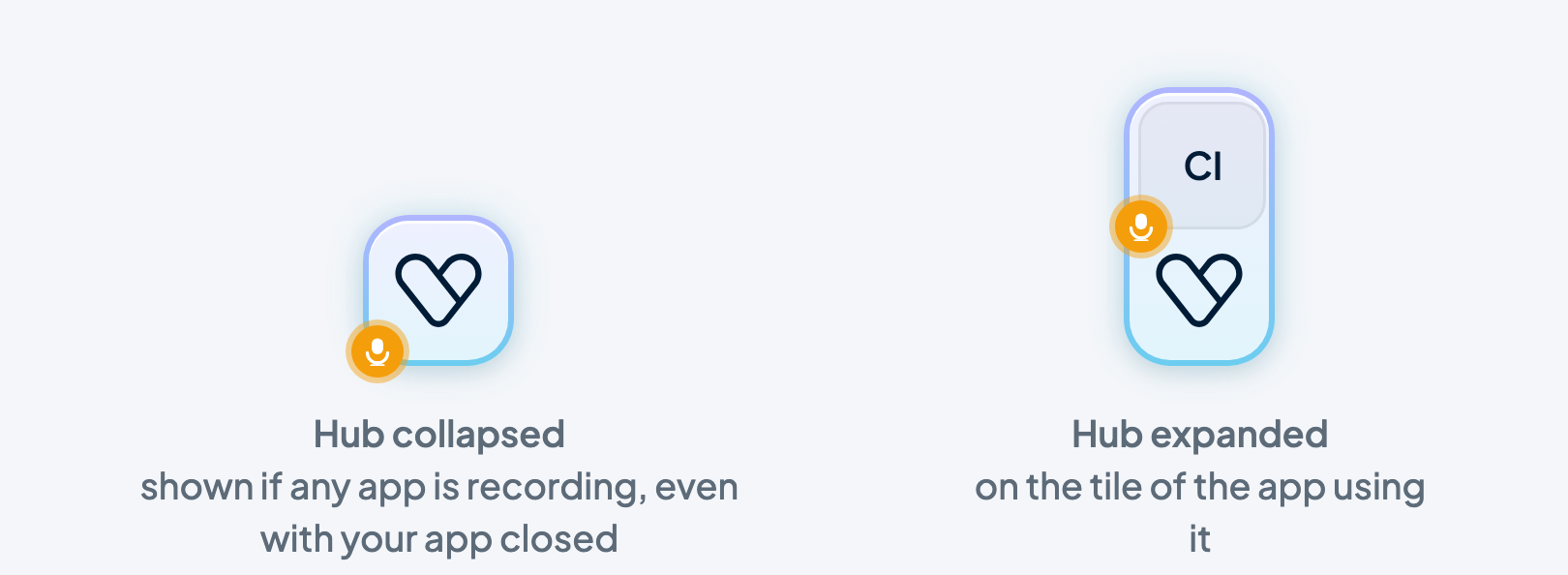
Four things worth knowing:
- It survives a collapsed Hub. If the provider collapses the Hub to a single button, a badge set by any app is shown on that button, so recording never becomes invisible.
- It does not grant the microphone. Showing the badge needs no declaration; recording does — see Microphone and Camera.
- Nothing clears it for you. It is not tied to a microphone permission or to an audio stream —
it stays up until your app calls
hide(). Clear it in afinally, and on close, or it will outlive the recording. - It is not available to a Worker App. Like
closeApp(), it is a side-panel concern and exists only on the UI App SDK.
It is independent of the notification badge, which sits at the top-right; an app can show both.
Patient Header
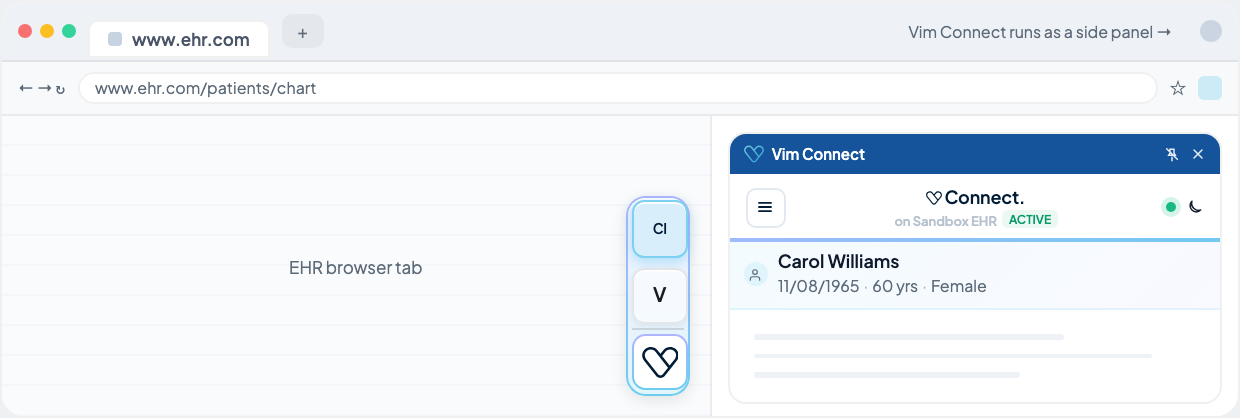
A banner Vim draws above your app showing who is open in the chart — name, date of birth, computed age, and gender. It is the one Hub surface with no method behind it: you declare it, and Vim renders and maintains it.
Required capability
Tick Show Patient Header on the App UX tab of your manifest in the Console. There is no SDK call — declaring it is the whole integration.
What it is for. Your app and the EHR can disagree about who is on screen, and in that gap a provider can act on the wrong patient. The banner is Vim showing, outside your iframe, which patient the platform has in context. Show it whenever your app displays or writes patient-specific data.
It is a second opinion, not a guarantee. Keep your own context subscription authoritative for what you render and write — do not treat the banner as the thing that makes a write safe.
How it behaves:
- It appears only while a patient context is active, and disappears when the chart closes, so it is never shown empty.
- It survives switching between context types. A patient open in both
chart_open:patientandencounter_open:patientstays in the banner when one of the two closes. - Age is computed from the date of birth, not read from the EHR.
- Demographics start from what was extracted from the EHR page and are then enriched by a patient read, with the fetched values winning per field. So it can fill in a moment after the chart opens, and it works even on EHRs that expose nothing but a patient ID.
Close App
Closes your own app's panel, returning the provider to the EHR with the Hub still there. Use it when your app's job is finished — a form submitted, a suggestion accepted — rather than leaving the provider to close a panel that has nothing left to show.
sdk.hub.closeApp();Your app is not torn down: the iframe stays loaded, the SDK stays connected, and your state is
still in memory when the provider re-opens it. What you get is an appState change with the
trigger app_request — so the same handler that reacts to the provider closing you also covers
closing yourself.
Not available to a Worker App, which has no panel to close.
App State
Whether the provider currently has your app open, and how that last changed. A Worker App gets the same property — that is how a background worker knows whether anyone is looking.
const isOpen = sdk.hub.appState.isAppOpen;

const unsubscribe = sdk.hub.appState.subscribe('appOpenStatus', (status) => {
  if (status.isAppOpen) {
    console.log('Opened by:', status.appOpenTrigger);
  } else {
    console.log('Closed by:', status.appCloseTrigger);
  }
});

// Later — stop listening
unsubscribe();
Open triggers
| Trigger | What happened |
|---|---|
manually | The provider clicked your icon in the Hub |
push_notification_clicked | The provider tapped one of your notifications — tapping the card always opens the app. Any launchPayload on that notification arrives with the open |
Close triggers
| Trigger | What happened |
|---|---|
manually | The provider closed the panel and opened nothing else |
app_switch | The provider opened a different app; yours closed to make room |
app_request | Your own closeApp() call |
app_disabled | Declared by the type, but not currently emitted — do not build behaviour on it |
The state is worth acting on in both directions: pause polling or animation when you close, and
refresh what you show on open rather than trusting data fetched while the panel was hidden. A
notification-driven open in particular means the provider arrived for a specific reason — read
launchPayload to land them in the right place.